Grow your own framework
The base Framework is deliberately small. The selected categories start empty apart from Memory state entrypoints and the CLI Skill. It becomes useful as you add what your project keeps teaching you.
The ten-minute guide covers the first rule, Pattern, and saved fact together. This page explains how to place later additions and keep them relevant as the workspace grows.
Make the next task simpler
Start with one recurring problem. If you keep repeating a correction, write one rule. If an answer already lives in your README, wiki, or API documentation, link to it and say when it matters. If a task produces a useful finding, keep it where the next relevant task can find it.
That is the core: Markdown, rules, and links. You can edit them with your usual editor and review them in Git. Leave unused categories empty, and add a scope or Extension when an actual need appears.
When the workspace feels cumbersome, look for repeated content and rules that load for unrelated work. Keep each detailed answer in one place, replace copies with links, and move specialized material into a scope. A small relevant set is easier to understand and maintain.
Add your first rule
Use the first rule in the ten-minute guide as a starting point. A Directive file keeps required behavior under ## Instructions and carries LoadNow, so the agent reads it when its parent entrypoint loads. Root Directives apply throughout the workspace. Scoped Directives apply once their scope is selected.
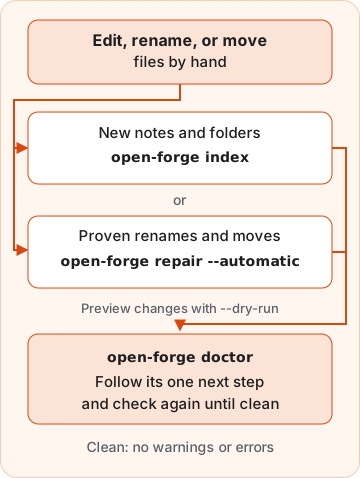
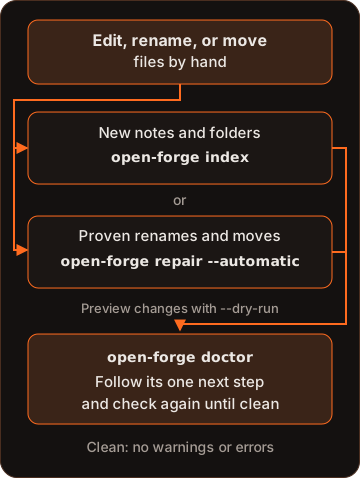
After adding a file by hand, preview open-forge index --dry-run, then run open-forge index. It fills missing descriptions and category tags, creates missing navigation files for nested folders, and updates Entries. Your content and supplied metadata stay intact. Run open-forge doctor and follow its one next step for anything left. Without the CLI, maintain the metadata and links yourself. See After you edit files by hand for renames and moves too.
Put it in the right place
The same move works for everything your project teaches you. Pick the category by the question the content answers:
| You have... | Make it a... | Because it answers... |
|---|---|---|
| A correction you keep repeating | Directive | What behavior is required in this scope? |
| Advice that depends on the situation | Guidance | What approach is recommended, and when does it fit? |
| A structure that makes mistakes easy to spot | Pattern | What reusable shape makes related work easy to create and inspect? |
| A starting file you keep recreating | Template | What starting content can be copied, adapted, and maintained independently? |
| A source the agent should know about | Map | Where is a useful local or external source, and when should it be used? |
| A specialized capability | Skill | Which specialized capability would help with this work? |
| A method that keeps saving you time | Workflow recipe behind the use-workflow Skill | What repeatable method would help? |
| A finding or an accepted decision | Memory | What is worth remembering for current or future work? |
The six Core categories and Memory are built-in routes that you can select during installation or add later. Workflow recipes and the use-workflow Skill come from the optional Workflow Support Extension. The Core categories page explains each one.
Change your setup choices
To revisit Essentials, Full Core, Custom, or the metadata form, run:
open-forge install --configure
The wizard offers the presets, with Custom starting from the current choices, and asks about the frontmatter form with the current form preselected. It shows the plan before confirmation. It preserves authored files and narrower omissions. It can also restore eligible missing packaged defaults, such as ignored Working scaffolding after a checkout, whether or not the lock file is present. Missing private notes need your own copy or backup.
To change only the form while keeping route choices, run:
open-forge install --configure --frontmatter scoped --dry-run
open-forge install --configure --frontmatter scoped --automatic
Configure converts unedited owned Framework and Extension files to the selected form in the same operation as the settings change. Files already in that form need no change. Edited owned files and Extension files whose source is unavailable stay unchanged and are reported. Kept files do not block the form change. Excluded files, user-authored files, Library files, and overwrite companions are never converted. Native Skills and body content, including fenced examples, stay unchanged.
To switch an existing setup to Essentials, preview that exact choice, then apply it:
open-forge install --configure --preset essentials --dry-run
open-forge install --configure --preset essentials --automatic
For Custom row flags, metadata precedence, and unattended combinations, see the CLI reference.
Custom starts from your current choices. Mark an omitted category + to add it, or ~ to keep new contents out of ordinary Git commits while leaving its entrypoint shareable. Marking it - omits supplied defaults and releases their Framework management. Existing files, notes, and overwrite companions stay routable. For deletion, review the separate Remove command.
The review and result recap the resolved setup and changed route choices. In line mode, the list explains the sharing and retention rules and accepts cancel to stop without changes.
Essentials keeps new Working records out of ordinary Git commits and leaves _working.md eligible for sharing. Already tracked files stay tracked. Generated Entries omit private contents. You can find and read local records with the CLI or your normal file tools.
Add an omitted category
You can add an omitted Core category later. Name its canonical root with open-forge route init <category> --framework --dry-run, review the plan, then run the same command without --dry-run. The ten-minute guide shows the commands for Patterns.
Selecting a Core root restores its packaged contents. For example, skills includes the bundled CLI Skill. Selecting a Memory state such as memory/archived restores only that state and necessary missing ancestors, leaving the other states as they are.
If a broader ancestor was excluded, add it explicitly first. The plan clears only the selected root or state's exact exclusion. It preserves unrelated descendant and file omissions, existing authored files, and overwrite companions.
This restoration applies to unscoped canonical Core roots and Memory states. A scoped target still creates its sparse entrypoint chain. See the CLI reference for the complete rules.
Keep it cheap with scopes
Adding knowledge doesn't have to mean every task reads more. Put frontend conventions in a frontend scope and database rules in a database scope:
.agents/directives/
  _directives.md
  testing.md                  <- #LoadNow: applies to every task
  frontend/
    _frontend.md              <- on demand: opened only for frontend work
    components.md             <- #LoadNow once frontend/ is selected
  database/
    _database.md
    migrations.md
Scopes narrow rules by subject, while applyTo can narrow a source to matching files within a selected route. A matching path doesn't open a hidden scope.
At startup the agent sees each scope only as one entry line in _directives.md. A task selects the branches it needs, and a task that spans both follows both on purpose. There's no fixed limit on how many scopes you add or how deep they go. The CLI can create a scope for you:
open-forge route init directives/frontend \
  --description="Rules for frontend work" \
  --tag=Directive \
  --tag=Frontend \
  --dry-run
Run it again without --dry-run once the preview looks right.
Read more in Scopes.
Start from a template
The built-in Templates category starts empty when selected. The Core Templates Extension adds a starter for each Core category and one for Memory records. The more specialized Extensions add starters for tasks, decisions, scenarios, and project documents.
Next: learn how it all fits together in Concepts.